Migrating your data from your old organizer to your new ZQ-700 series organizer

Before starting: please note you MUST currently own or purchase the PC-Link software/cable for your current organizer.

Check the chart below for which PC software program you'll need. If you own an organizer older than these, you'll have to follow the instructions for your organizer's PC-Link software on how to export an ASCII text file (just be sure to use the ".asc" file extension when naming the export file). The import procedures will be generally the same except for the field order, which you will easily be able to figure out.

Also note if you cannot find the PC-Link software/cable for your current organizer, Mobilescape (www.mobilescape.com) offers a product called "RuppLynx" which works with most Sharp organizers ever produced and can be used to get your data onto your PC. Contact them at www.mobilescape.com for more details.


1) Please exit all other running Windows® programs.
2) Start the PC-Link software that you use with your current organizer and connect the organizer to your PC.
3) Click on the PC-Link software in the left hand column to see instructions specific to that software program.

PC-LINK Software US Organizers Other Country Organizers
Day-Timer® 2.1/Intellisync™
(OZ-60K)
OZ-630/640/650/570 ZQ-630/640/650/570
CE-690W OZ-6500/5600 ZQ-6600/5500
CE-490W/491W EL-6750/6790 EL-6660, EL-6690/6690A, YO-150/170/180, YO-200/210, YO-250M/260M, YO-300/310, YO-350/370/380/390, YO-400/430/470/480, YO-500/530/550, ZQ-150/155, ZQ-155M/156M, ZQ-160/165, ZQ-170/175, ZQ-175M/176M, ZQ-180, ZQ-2500/2550M, ZQ-2600/2650, ZQ-2700/2750M, ZQ-2800/2850, ZQ-3000/3050, ZQ-3200/3250, ZQ-4000/4050M, ZQ-4200/4250, ZQ-4300/4350/4350M, ZQ-4400/4450/4450, ZQ-4500/4550, ZQ-4600/4650M, ZQ-470/475, ZQ-475M/476M, ZQ-480/485, ZQ-5400/5450/5450M, ZQ-5650/5650M, ZQ-5900, ZQ-D400, ZQ-M201B/M221B
CE-390 YO-200/210, YO-300/310, YO-350/370/380, YO-250M/260M ZQ-26XX/28XX, ZQ-30XX/32XX, ZQ-42XX/44XX, ZQ-D400


Using the Day-Timer® Organizer 2.1
4) Synchronize with your current organizer to be sure the information in the Day-Timer® Organizer 2.1 is up to date. Then disconnect that organizer and quit the Day-Timer® Organizer 2.1.
5) Install the Day-Timer® Organizer SHARP Edition (referred to from now on as the "DTO-SE") software that came with your new ZQ-700 series organizer, if you haven't already.
6) Start the DTO-SE. When you first start this software it should automatically detect your original Day-Timer® 2.1 data and automatically import and translate the file (you may have already done this and not even realized it). However, if it doesn't detect it automatically, follow the steps below:
a) In the DTO-SE "File" menu select "Translate" then select "From Day-Timer® Organizer 2.1".
b) Select the database file (probably called "Main").
c) Click "Open".
7) Be sure to update this newly installed DTO-SE from our web site to the latest version. To update the DTO-SE, please select "Auto Update DTO-SE" from the "Help" menu in that program.
Using the CE-690W
Please note Ann2, MEMO, and OUTLINE cannot be imported.
If you want to migrate data from these applications, please use your PC's Copy & Paste functions to paste this data directly into the Day-Timer® Organizer SHARP Edition (referred to from now on as "DTO-SE").
4) Start the CE-690W software.
5) Click the "Export" button.
6) Select an application and input the file name (N.B. Remember what directory this file is in for step #11 below!).
(Important!: Please manually set the extension to '.asc'.)
7) Select a Map-file for each application.
(For TEL 1-3 and TODO: Select the default map-file.)
(For Schedule and Ann1: Select this map-file.)
8) Click the Export button to export the data to the file specified in step #7.
9) Quit the CE-690W and Start the DTO-SE.
10) Important! Update this newly installed DTO-SE from our web site to the latest version. 
(To update the DTO-SE, please select "Auto Update DTO-SE" from the "Help" menu in that program. If you are not connected to the internet, the DTO-SE will attempt to do so at this point.)
11) From the DTO-SE File menu, select "Import Entries", then select "ASCII".
12) Select the file you want to import(navigate to the file you created in step #7.)
(Select the folder where you want to import the file from.)
13) Select the Delimiter Type to Comma+quotes.
14) Leave the SKIP first check box unchecked.
15) Be sure to map each field (click on and then drag the field name on the left over to the white area directly under the text "Mapped fields". See the tables below for which field goes where.)
16) Click the Import button to import data.

TEL 1-3
Import to Address Book

Drag these fields ... next to the fields below
Last Name 1st field
Home Phone 2nd field
Home - Address1 3rd field

Schedule
Import to Schedule

Drag these fields ... next to the fields below
Date 1st field
Begin Time 2nd field
Text 3rd field
End and Alarm time will not be imported.

To Do
Import to Tasks

Drag these fields ... next to the fields below
Text 1st field
  2nd field
Priority 3rd field
  4th field
Category 5th field
Custom Field 1 6th field
Custom Field 2 7th field
Custom Field 3 8th field
Custom Field 4 5th field
Date field will not be imported.

Ann1
Import to Schedule

Drag these fields ... next to the fields below
Date 1st field
Text 2nd field
Ann1 data will be imported as schedule data in the current year.
Using CE-490W/491W
Please note Expense, Ann2, and Memo cannot be imported.
If you want to migrate data from these applications, please use your PC's Copy & Paste functions to paste this data directly into the Day-Timer® Organizer SHARP Edition. (referred to from now on as the "DTO-SE")
4) Start the CE-490W/491W software.
5) Click on the icon of the application data you want to export (e.g. "Tel 1"). If the application is Schedule or Ann1, please select 'mm/dd/yyyy' in Options menu.
(Note - You'll have to repeat steps #5 ~ 18 for each application you want to import)
6) Select Export in the File menu.
7) CE-491W users only: Check the "First record contains filed names" check box.
8) Click "Add All" to export all fields.
9) CE-491W users only: Click "Options" and check "Comma (SDF)" and then click "OK".
10) Input the export file name. Remember what directory this file is in for step #13 below! You can use "Browse" to change it.
(Very Important!: Please manually set the file extension of this file to '.asc'.)
11) Click the "Export" button to export data.
12) Quit this software and Start the DTO-SE.
13) Click on the application you want to import data into (e.g. "Address Book") if the splash screen shows up at start-up.
14) Important! Update this newly installed DTO-SE from our web site to the latest version.
(To update the DTO-SE, please select 'Auto Update DTO-SE' from the "Help" menu in that program. If you are not connected to the internet, the DTO-SE will attempt to do so at this point.)
15) In the DTO-SE File menu select "Import Entries" then "ASCII".
16) Select the file you want to import (navigate to the file you created in step #9) and click OK.
17) Select the Delimiter Type to Comma+quotes and click OK.
18) CE-491W users only: Check the "SKIP first" check box.
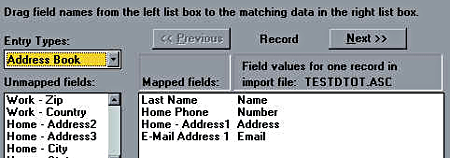
19) Be sure to map each field (click on and then drag the field name on the left over to the white area directly under the text "Mapped fields". See the tables below for which field goes where).  For example, figure 1 below shows how it should look AFTER you drag the fields over when importing Tel 1 to Address book.
20) Click the Import button to import data.

Figure1. Mapping Dialog example - mapping Tel 1 to Address book

TEL 1-3
Import to Address Book

Drag these fields ... next to the fields below
Last Name Name
Home Phone Number
Home - Address1 Address
E-mail Address 1 E-mail

(Note - substitute "Work Phone" for "Home Phone" if your TEL file is mostly business contacts)

Schedule
Import to Schedule

Drag these fields ... next to the fields below
Date Date
Begin Time Start Time
End Time End Time
Text Description

To Do
Import to Tasks

Drag these fields ... next to the fields below
Priority Priority
Text Description

'Done' data will not be imported.

Ann 1
Import to Schedule

Drag these fields ... next to the fields below
Date Date
Text Description
  Notice

Ann1 data will be imported as schedule data in the current year.
Using CE-390
Please note Expense, Schedule, Ann1, Ann2, and Memo cannot be imported. If you want to migrate data from these applications, please use your PC's Copy & Paste functions to paste this data directly into the Day-Timer® Organizer SHARP Edition (referred to from now on as the "DTO-SE").
4) Start the CE-390 software.
5) Press the F2 key then select "Application".
6) Press F6 then select "Export".
7) Input the export file name. (Remember what directory this file is in for step #13 below!)
(Important!: Please manually set the extension to '.asc'.)
8) Press Enter to export data.
9) Quit this software and start the DTO-SE.
10) Click on the application you want to import data into (e.g. "Address Book") if the splash screen shows up at start-up.
11) Important! Update this newly installed DTO-SE from our web site to the latest version. 
(To update the DTO-SE, please select "Auto Update DTO-SE" from the "Help" menu in that program. If you are not connected to the internet, the DTO-SE will attempt to do so at this point.)
12) In the DTO-SE "File" menu select "Import Entries" then select "ASCII".
13) Select the file you want to import by navigating to the file you created in step #9.
14) Select the Delimiter Type to "Comma+quotes".
15) Leave the "SKIP first" check box unchecked.
16) Be sure to map each field (click on and then drag the field name on the left over to the white area directly under "Mapped Fields". See the tables below for which field goes where).
17) Click the "Import" button to import data.

TEL 1-3
Import to Address Book

Drag these fields ... next to the fields below
Last Name 1st field
Home Phone 2nd field
Home - Address1 3rd field

To Do
Import to Tasks

Drag these fields ... next to the fields below
Priority 1st field
Text 2nd field

Ann1
Import to Schedule

Drag these fields ... next to the fields below
Date 1st field
Text 2nd field
Ann1 data will be imported as schedule data in the current year.
  • Windows is either a registered trademark or a trademark of Microsoft Corporation in the United States and/or other countries.
  • Day-Timer is a trademark or registered trademark of Day-Timers, Inc.
  • Intellisync is a trademark of Pumatech, Inc., that may be registered in some jurisdictions.
CLOSE THIS WINDOW