


 検索
検索よくあるご質問
質問
How to Install a Printer Driver [Recommended Standard Installation] (FAQ No.01206)
回答
We recommend downloading and using the latest printer driver from the website instead of using the printer driver in the CD-ROM bundled in the MFP product package.
Procedure
1. Select a Printer Driver to Install.
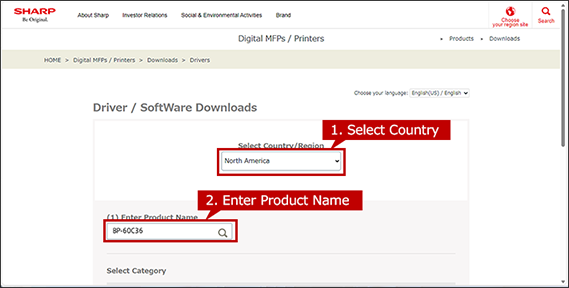
Enter the Product Name and Country/Region on the Driver/Software Downloads page
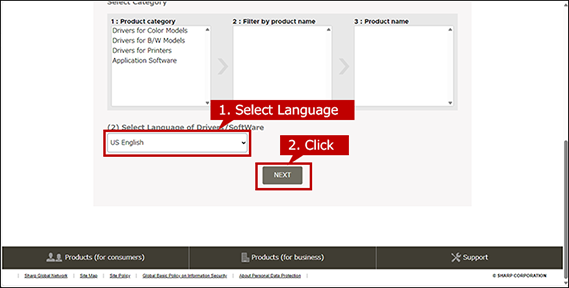
Next, select your language of Drivers/Software and click [NEXT].
2. Select Operation System
The OS of your computer will be automatically determined, so click [NEXT].
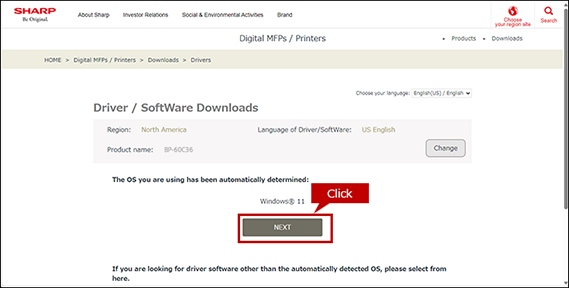
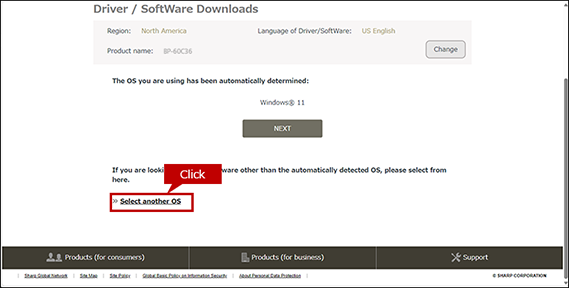
◎ The automatically detected OS for server may differ from the actual OS.
If the detected OS is different from the actual OS, click [Select another OS] and select the OS of your PC from the list box.◎ When the OS can't be detected automatically.
When a list box appears, select the OS of your PC from the list box.◎ How to find the OS information of your PC.
To check the OS information of your PC, refer to "What is my OS ? How do I know the bit of my PC ?"◎ When multiple printer drivers are listed on the download webpage.
Select the driver to fit your environment.3. Download and Install a Printer Driver.
Click the [Download] button and click the [Open] button on the opened window. If you saved the file, double-click it. Depending on your PC environment, sometime the file is automatically saved without opening a window.
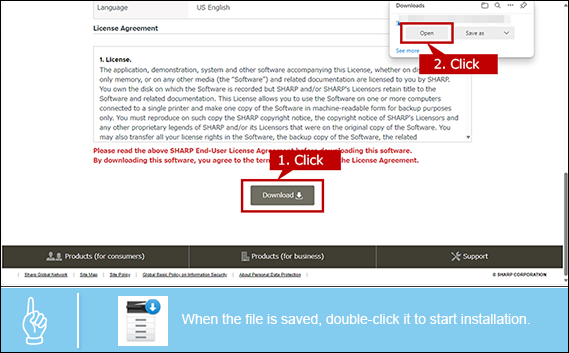
◎ An Installation requires an administrator privileges.
- ● Right-click the stored file and click [Run as an administrator] on the displayed menu to execute the installation.
- ● Enter the admin password if necessary.
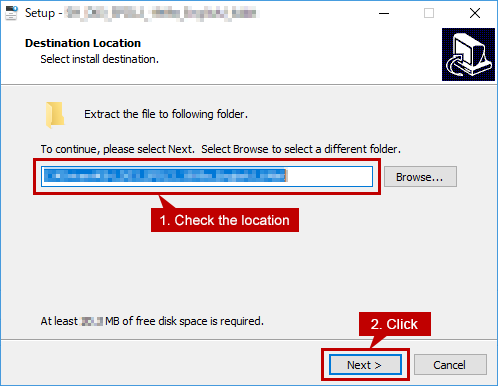
4. Specify Where to Save the File.
Check where to save the file then click the [Next] button.
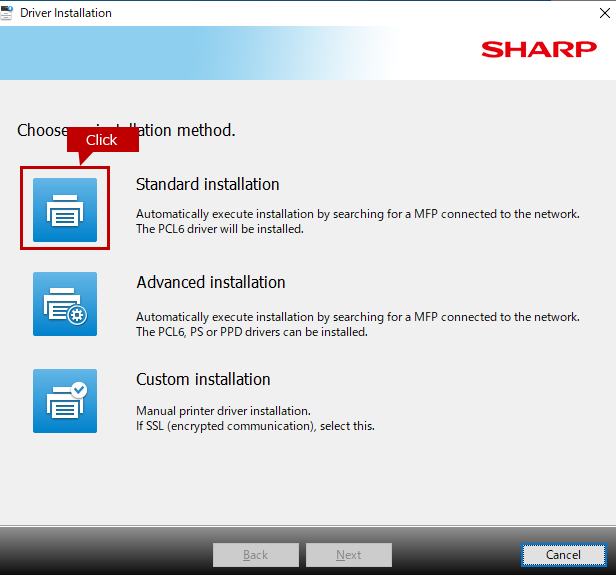
5. Select Installation Method.
Click the [Standard installation] icon.
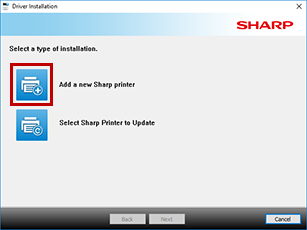
◎ When "Select a type of installation." screen appears.
When [Add a new Sharp printer] icon is clicked, the screen goes to the [Choose an installation method] screen. This screen appears when a MFP using the same printer driver is registered or a previous version of the printer driver has already been installed.6. Select a MFP to install.
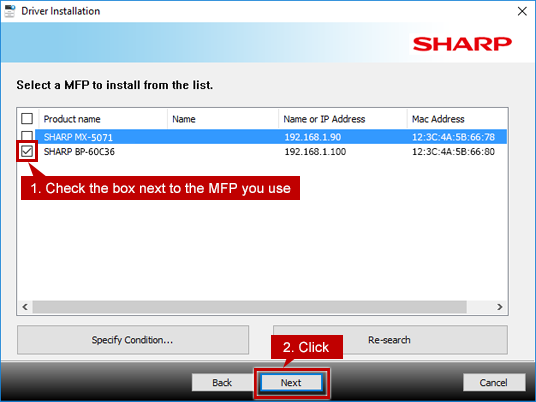
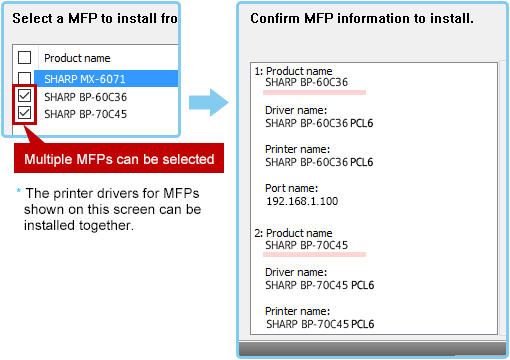
Check the box of MFP to be installed and click the [Next] button.
*The printer drivers displayed on this screen can be installed at the same time.
◎ When only one MFP is detected.
This screen is not displayed, but the screen of 6. is displayed.◎ If no MFP(s) detected.
- ● Check : Does the MFP power on ?
- ● Check : Does the PC and MFP are connected to the network properly ?
- ● When there is no problem with those above, you can perform a search by clicking the [Specify condition] button. Reference : When installing a printer driver, the machine is not detected. (Windows)
7. Check the MFP to Install and Start Copying Files.
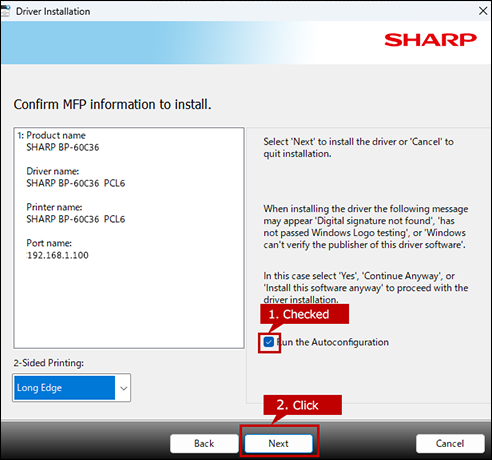
Check the displayed information and click the [Next] button to start file-copying process.
◎ When a security warning window pops up.
There is no problem with the printer driver so please click a button to continue the installation.8. Print Test Page and Check Whether the Printer Driver is Successfully Installed.
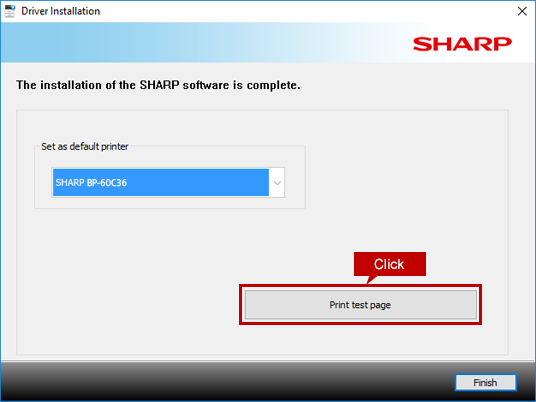
Once the completion screen for the installation is displayed, click the [Print test page] button and check whether the test page is printed.
9. "Select the Printer Driver Set as the Default Driver.
Select the default printer driver.
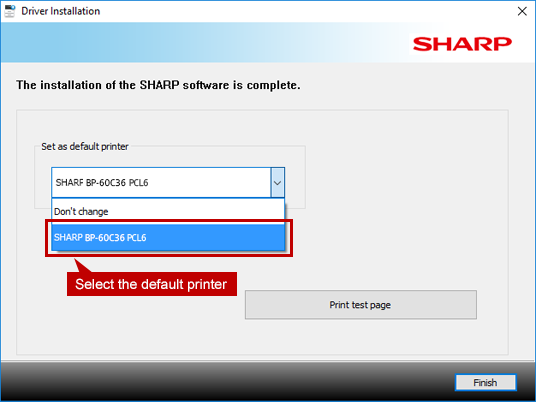
◎ What is the default printer?
- ● Set the printer usually used as the [default printer].
- ● Select [Don't change] when you do not want to change the current [default printer].
- ● The printer can be changed to another printer when printing.
10. Finish the Driver Installation.
Click the [Finish] button.
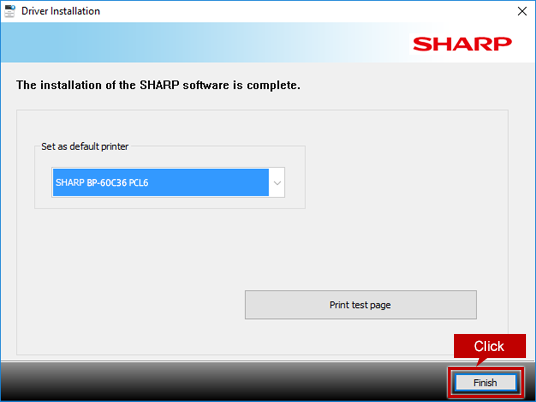
◎ When a message appears to prompt the user to restart the PC.
Click the [Yes] button to restart your PC.関連キーワード
FAQJPID_01206 / Printer / Driver / Printer Driver / Install / Set up / Windows
各製品のよくあるご質問トップに戻る
BP-40C26 / BP-40C36 / BP-50C26 / BP-50C31 / BP-50C36 / BP-50C45 / BP-50C55 / BP-50C65 / BP-50M26 / BP-50M31 / BP-50M36 / BP-50M45 / BP-50M55 / BP-50M65 / BP-51C26 / BP-51C31 / BP-51C36 / BP-51C45 / BP-51C55 / BP-51C65 / BP-51M26 / BP-51M31 / BP-51M36 / BP-51M45 / BP-51M55 / BP-51M65 / BP-55C26 / BP-56C26 / BP-60C26 / BP-60C31 / BP-60C36 / BP-60C45 / BP-61C31 / BP-61C36 / BP-61C45 / BP-70C26 / BP-70C31 / BP-70C36 / BP-70C45 / BP-70C55 / BP-70C65 / BP-70M31 / BP-70M36 / BP-70M45 / BP-70M55 / BP-70M65 / BP-71C31 / BP-71C36 / BP-71C45 / BP-71C55 / BP-71C65 / BP-71M31 / BP-71M36 / BP-71M45 / BP-71M55 / BP-71M65 / BP-80C70 / BP-80C80更新日:2026年9月7日