
Tips
How can I check the destination of the data scanned with Sharpdesk Ver.3.5 Network Scanner Tool? (Tips No.01490)

Sharpdesk Ver.5.1
Follow the procedure below to check the destination of the scanned data which is made using Sharpdesk Ver.3.5 Network Scanner Tool.
Procedure
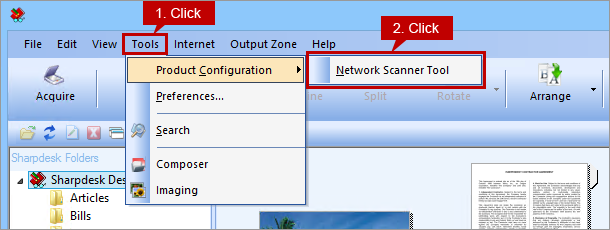
1. Start Sharpdesk and click [Tools] on the menu bar then click [Network Scanner Tool].
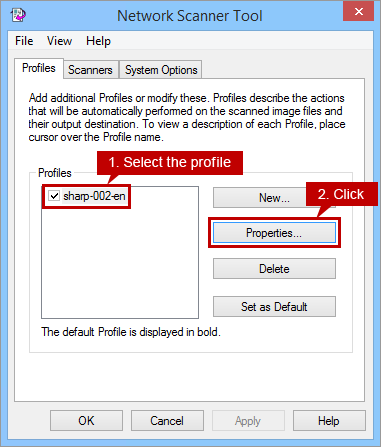
2. Network Scanner Tool profile screen will appear. Select [Profiles] tab then click [Properties...].
Profile (destination) Example: sharp-002-en
3. "Properties for Profile" screen will appear. Make sure that the check box for [Move File to Folder] in "Output Options" section is checked then click [Details...].

4. "Send to Folder" screen will appear and the destination of the scanned data is shown in the text box of [Move File to this folder].
Example of [Move File to this folder]: C:\Users\sharp\Documents\Sharpdesk Desktop

Now you have checked the destination of the scanned data which was made using the Network Scanner Tool.
Make backup copies of those files if necessary.