
よくあるご質問
回答
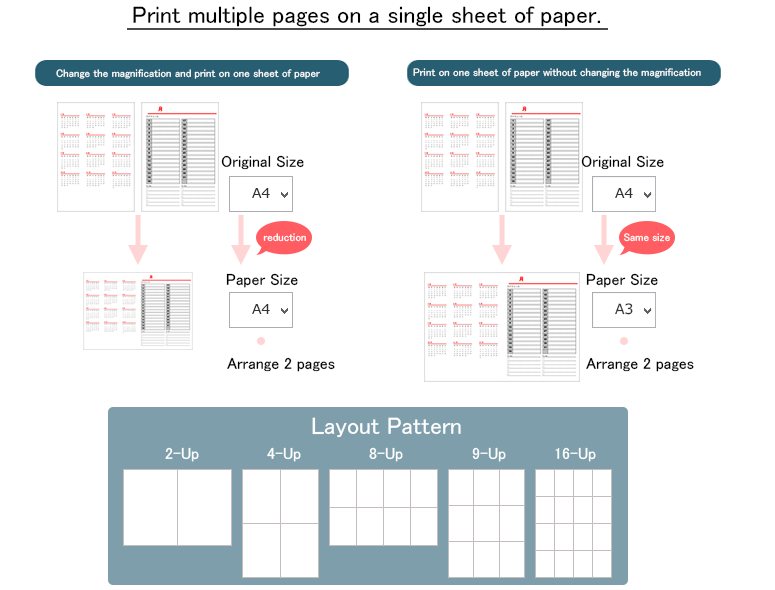
To print multiple pages on a single paper, use N-Up function.
The setting procedure is changed, depending on your purpose whether you want to print data by changing the ratio or whether you want to print data without changing the original size. We explain each procedure at Step 4.
Steps
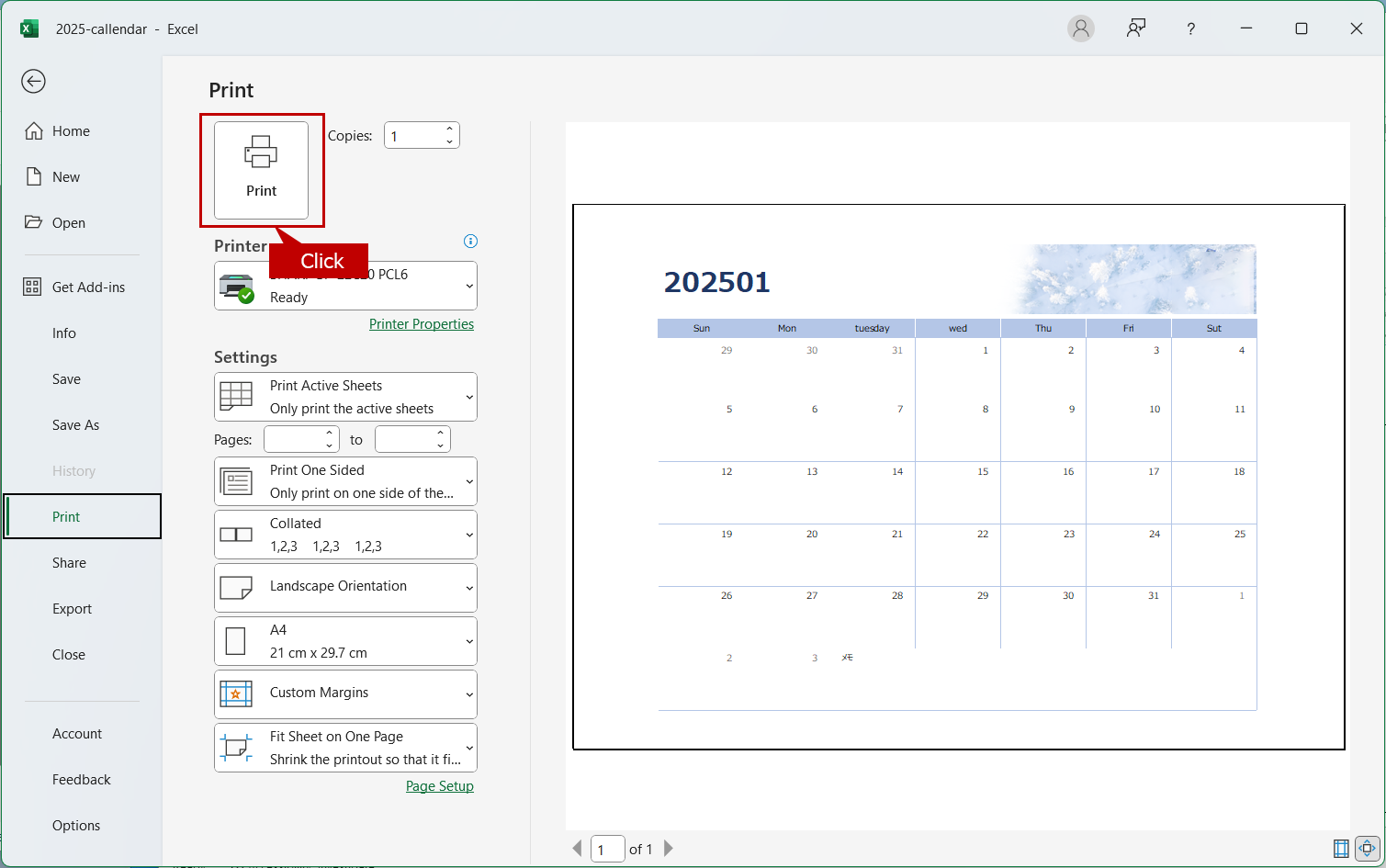
Here, print the document created by Word. We use BP-22C20 PCL6 driver (Windows version). Depending on your MFP or printer driver, some parts of description may be different.
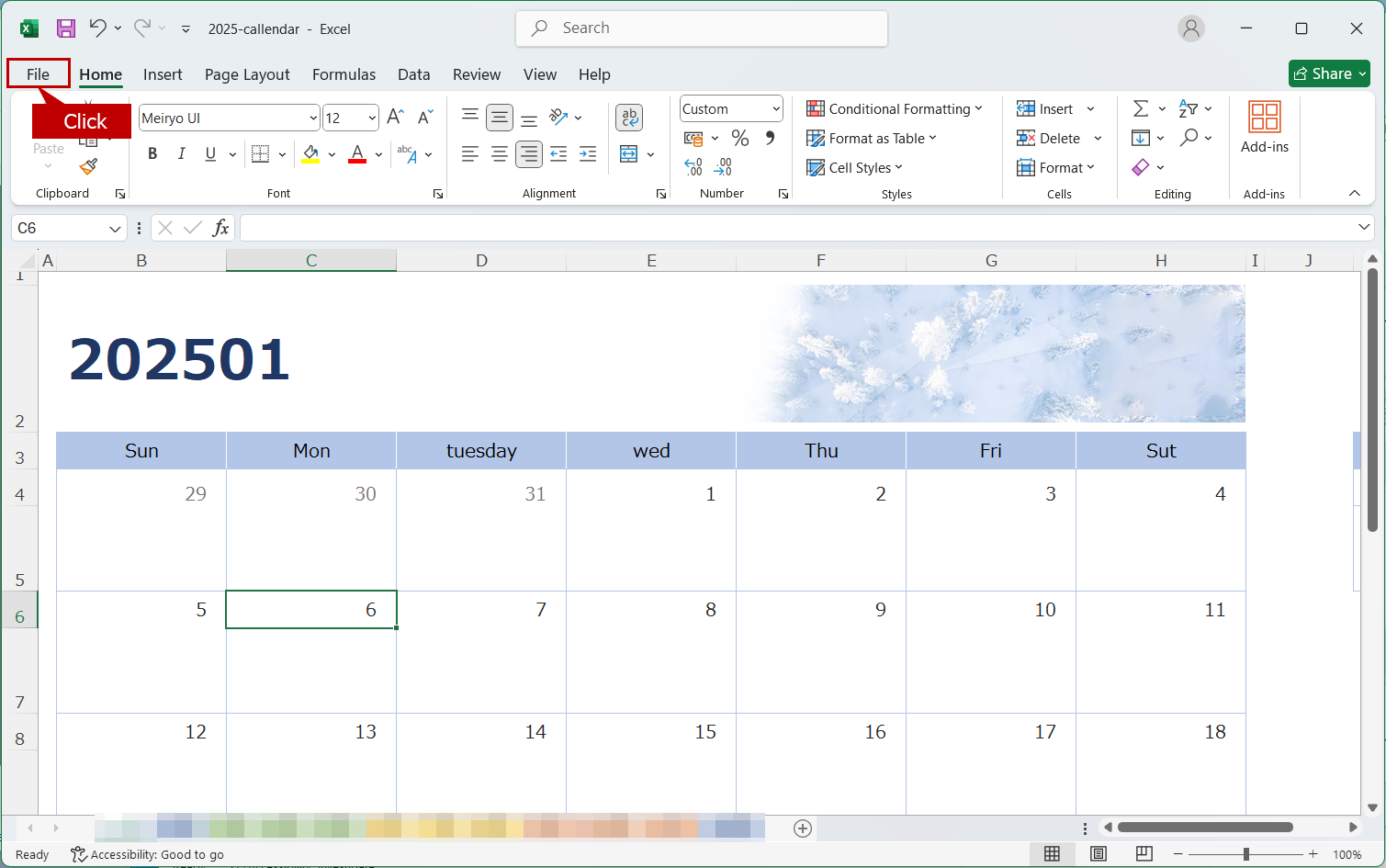
1. Click [File] on the menu bar.
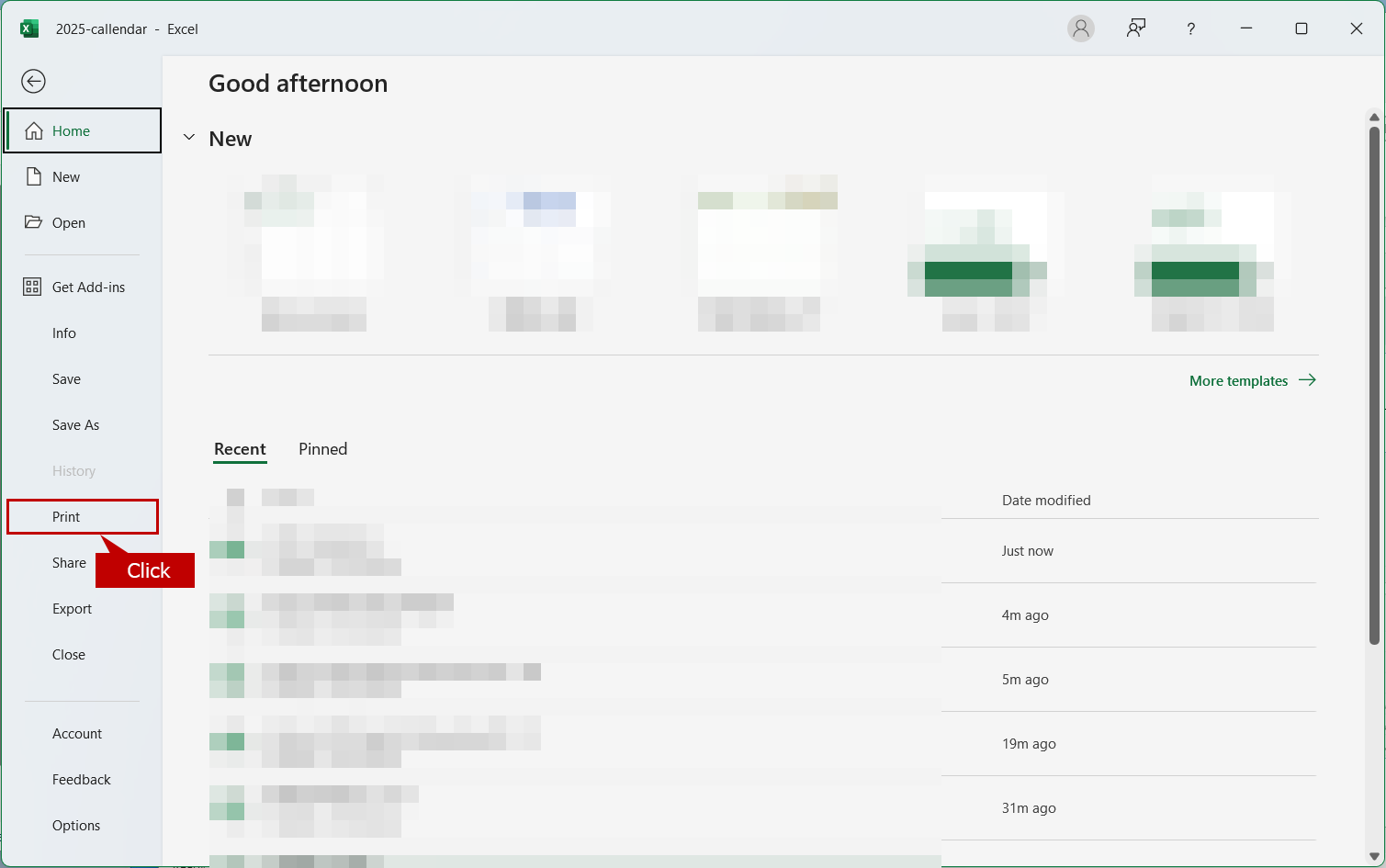
2. Click [Print] on the left menu.
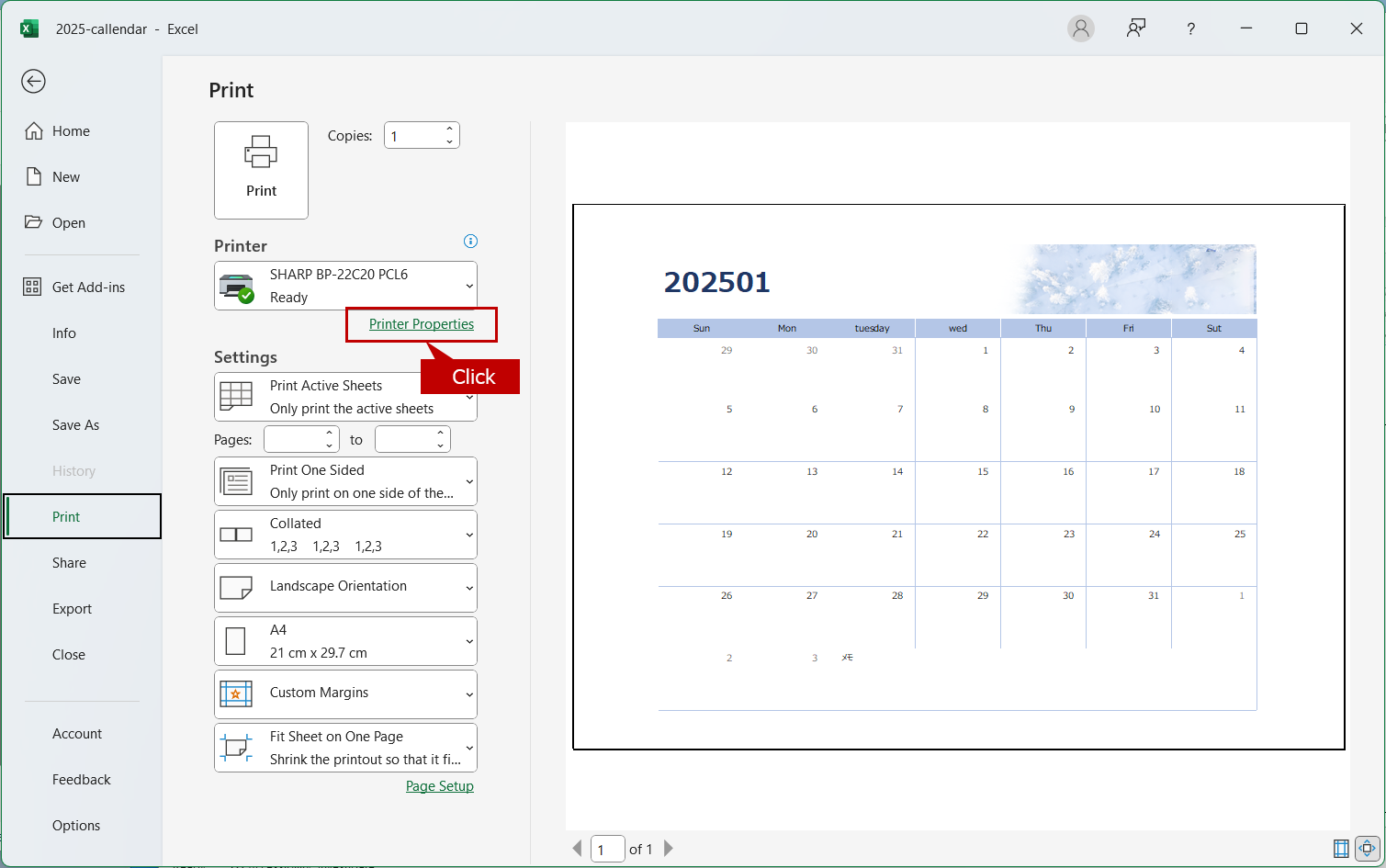
3. Click [Printer Properties].
4. Set printing method.
When you print the data into one sheet of paper by changing the ratio.
Ex.) Print 2 sheets of originals into one sheet of A4 paper.
Output Paper Size: Same as original size (A4) N-Up: 2-Up
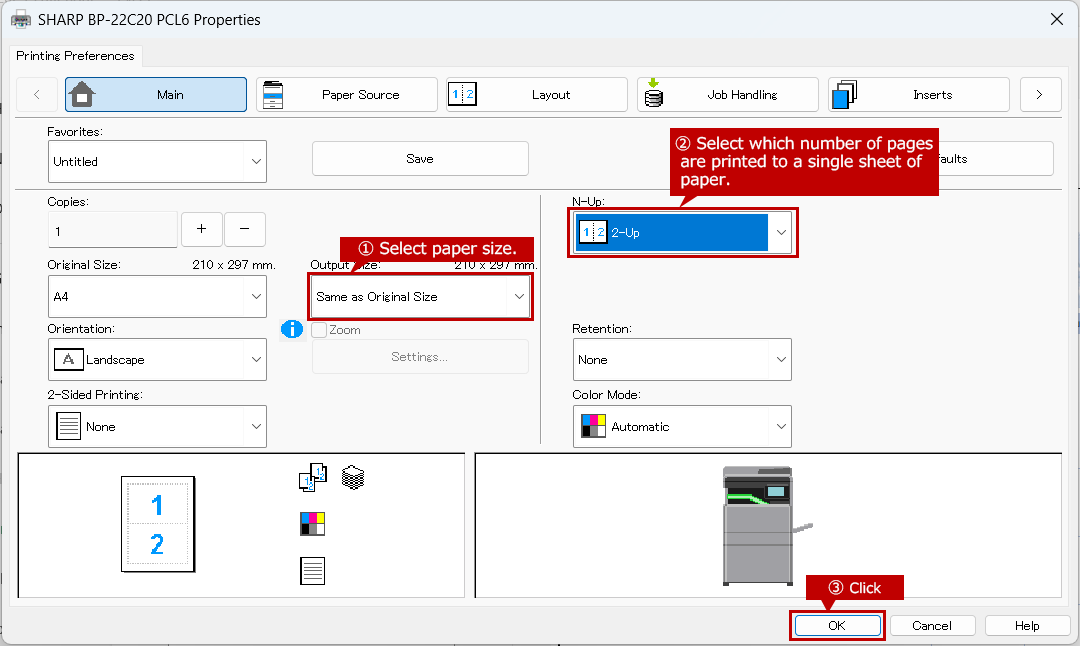
When you print the data into one sheet of paper without changing the ratio.
Ex.) Print 2 sheets of originals into one sheet of A3 paper.
Output Paper Size: A3 N-Up: 2-Up
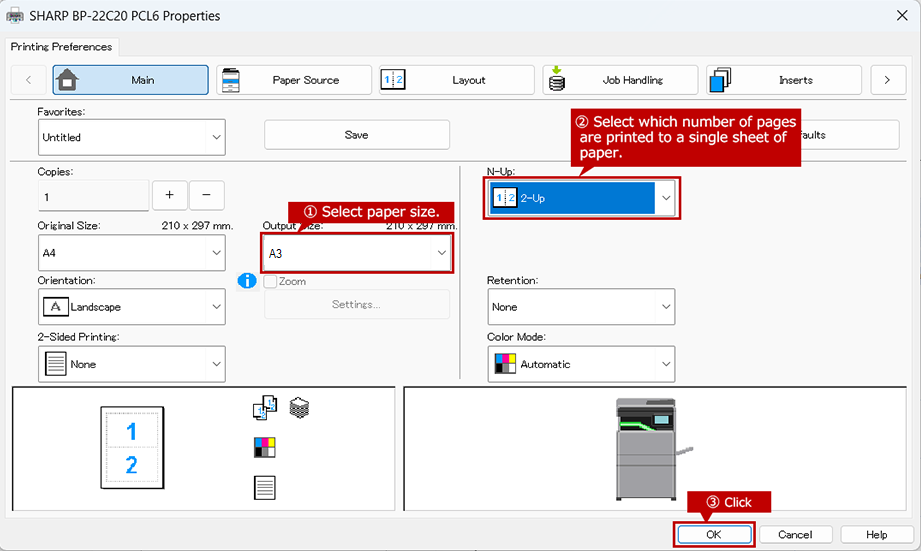
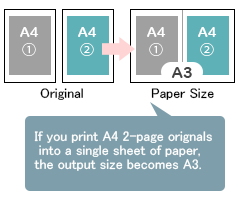
◎ About Paper Size to Select
When you do not want to change the ratio, please recognize which paper size is best to layout the specified number of original pages.Ex.2) Use single sheet of A3 paper to print A6 8-page originals.
Ex.3) Use single sheet of B4 paper to print B6 4-page originals.
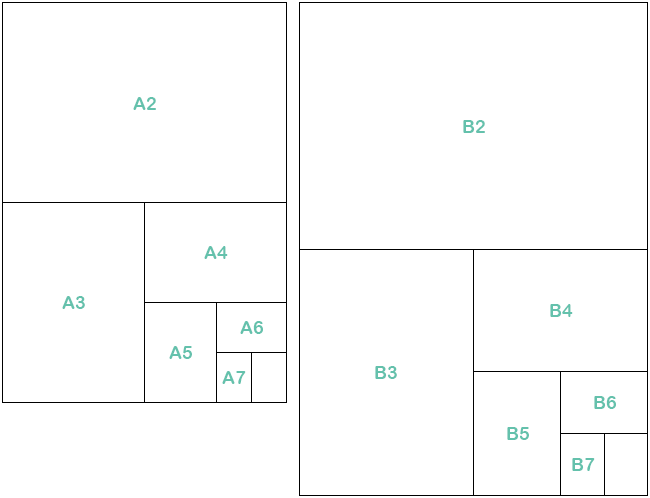
Check the Paper Size Guide below to select the paper size.
5. Click [Print].
The Paper Size Guide
The aspect ratio of paper size is same for both A series and B series.
The height/width ratio remains constant1: √2 for all sizes.
A series can be folded in half perfectly to create the next smallest size.
関連キーワード
FAQJPID_01230 / Aggregate / enlarge / reduce / original size / 100%
更新日:2026年5月29日