By selecting [Document Operations]
→ [Submit Print Job] from "Settings (Web version)" and specifying a file,
you can directly print the file without using the printer driver.
In addition to a file on your PC, this procedure can be used
to print any file that can be accessed from your PC, such as a file
on another PC connected to the same network.
Files that can be printed are PDF, TIFF, JPEG, PCL, PS, XPS,
DOCX*, PPTX*,
and XLSX* files with extensions
pdf, tif, tiff, jpeg, jpg, jpe, jfif, pcl, ps, xps, docx, pptx,
and xlsx Available only if the MFP supports PostScript.
Enter the password for the encrypted PDF data on Spool Queue
of the Job Status screen.
* The Direct print expansion kit is required.
Configure the print settings. Select the file you wish
to print under "Select File", then click [Print] once the settings
are complete. For details on the settings, see "
Submit Print Job".
You can print a file from your PC by simply
dragging and dropping the file onto the FTP server of the machine.
Performing FTP print
Enter the IP address of this machine in the server name field
of your FTP client application to connect to this machine.
When you upload the file you want to print in the "Ip" folder
on the FTP server of this machine, printing will start automatically.
If you configure your e-mail account in
the machine, the machine periodically checks your mail server and
automatically prints received e-mail attachments without using the
printer driver.
Performing e-mail print
Using your PC's e-mail software, specify the e-mail address
of the machine in "Address" and send e-mail attached with a file
to be printed.
Control commands can be entered in the message of the e-mail
to specify the number of copies and print format.
Commands are entered in the format "command name = value"
as shown in the following example.
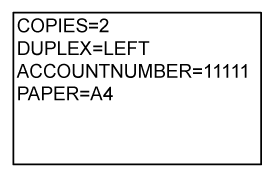
As an example, the control commands include the following:
| Function | Command name | Values |
|---|---|---|
|
Copies |
COPIES |
1 to 9999 |
|
Staple*1 |
STAPLEOPTION |
NONE, ONE, TWO, SADDLE, |
|
Punch*2 |
PUNCH |
OFF, ON |
|
Punch holes |
PUNCH-NUMBER |
TWO, THREE, FOUR, FOURWIDE |
|
Collate |
COLLATE |
OFF, ON |
|
2-sided Print |
DUPLEX |
TOP, LEFT, RIGHT, OFF |
|
Account Number *3 |
ACCOUNTNUMBER |
Number (5 to 8 digits) |
|
File Format |
LANGUAGE |
PCL, PCLXL, POSTSCRIPT, PDF, TIFF, JPG |
|
Paper |
PAPER |
Paper that can be used (LETTER, A4, or others) |
|
Fold*4 |
V-FOLD |
OFF, INSIDE, OUTSIDE |
|
Fold (Z-Fold)*4 |
FOLD |
OFF, A3, A4, B4, 8K, LEDGER, LEGAL, MXLEGAL, LETTER |
|
Document Filing *5 |
FILE |
OFF, ON |
|
FOLDERNAME |
Up to 28 characters |
|
|
Quick File*5 |
QUICKFILE |
OFF, ON |
|
Output |
OUTTRAY |
CENTER, RIGHT, FINISHER, TOPTRAY |
|
B/W Print |
B/W PRINT |
OFF, ON |
|
Fit Page |
FITIMAGETOPAGE |
OFF, ON |
|
Print Glossy |
MEDIATYPE |
GLOSSY |
|
Print Pages |
PRINTPAGES |
1-2,5,9- |
|
Print What*5 |
ALLSHEETS |
OFF, ON |
*1 Enabled only when a finisher, finisher (large stacker), saddle stitch finisher or saddle stitch finisher (large stacker) is installed.
*2 Enabled only when a punch module is attached to the finisher, finisher (large stacker), saddle stitch finisher or saddle stitch finisher (large stacker).
*3 Can be omitted except when authentication is by user number.
*4 When the folding unit is installed.
*5 Only enabled when either "Document Filing" or "Quick File" is "ON". When both are "ON", this is disabled.
Qualcomm® DirectOffice
™ is a product of Qualcomm Technologies,Inc.
and/or its subsidiaries.
Qualcomm® is a trademark of Qualcomm
Incorporated, registered in the United States and other countries.
DirectOffice™ is a trademark of
CSR Imaging US, LP, registered in the United States and other countries.
Version 02b / bp80c80_usr_02b_us

