UNIVERSAL DESIGN IN THE MACHINE
The structure of the machine and the software are designed to allow all people to
use the machine with ease.
UNIVERSAL DESIGN RELATED TO OPERATION
Adjustment of operation panel angle
The angle of the entire operation panel can be adjusted to enable use even when seated.
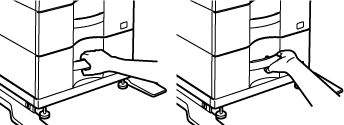
Grip handle on paper trays
The grip-type handles allow easy use from above or below. The trays can be manipulated
in a natural manner.
Changing of key response time
The response time of the keys can be changed as needed.
In "Settings" (administrator)", select [System Settings] → [Common Settings] → [Operation
Settings] → [Condition Settings] → [Key Operation Setting].
- Time for Accepting Key Entry
This setting determines how long a key in the touch panel must be tapped until the
key input is registered. The time can be set from 0 to 2 seconds in increments of
0.5 seconds.
By lengthening the time setting, key input can be prevented when a key is tapped accidentally.
Keep in mind, however, that when a longer setting is selected more care is required
when tapping keys to ensure that key input is registered.
- Disable Auto Key Repeat
This is used to disable key repeat.
Key repeat causes a setting to change continuously not only each time the key is tapped
but while a key is tapped.
- Long-touch Detection Time
Select a time when a long key touch is detected.
- Double Tap Speed Interval
Select an interval when a double tap is detected.
Confirmation of placement of original in document feeder
The original setting lamp lights up when the original is correctly set on the original
setting table. Even for users who have difficulty confirming that the original is
set on the original setting table, the original setting lamp can be turned on to confirm
that the original is set correctly.
UNIVERSAL DESIGN RELATED TO VISION
Changing of text size
The size of the text on the touch panel can be changed. When the text on the touch
panel is small and difficult to read, the text can be enlarged.
In "Settings" (administrator)", select [System Settings] → [Common Settings] → [Operation
Settings] → [Condition Settings] → [Enlarge Display Mode].
- Enlarge Display Mode
Displays large characters on the screen.
 appears in the system area when Enlarge Display Mode is enabled.
UNIVERSAL DESIGN RELATED TO HEARING
Audible alert sounds when changing settings
When moving settings, the user is alerted by an audible sound at the default setting.
In "Settings (administrator)", select [System Settings] → [Sound Settings] → [Beep
Sound Settings (Common)] → [Keys Touch Sound] and [Reference Tone].
- Keys Touch Sound
Control the key touch sound level, or turns the sound off. You can also have two peeps
sound at initial values when adjusting the exposure in any mode.
UNIVERSAL DESIGN FEATURES
The machine has design features and settings that are compatible with universal design.
Easy-to-use user interface
- Customizing the home screen and adding icons
You can add icons to the home screen. You can also change an icon image to a custom
image.
Add an icon image in "Settings (administrator)" - [System Settings] →[Home Screen
Settings] →[Icon].
To add an icon to the home screen, add a key in "Settings (administrator)" - [System
Settings] →[Home Screen Settings] →[Condition Settings] →[Home Button]/[Fix Key].
- Customizing the home screen - changing the display order
You can change the order of the items in the home screen so that the items you use
most frequently appear first.
To change the order of the items in the home screen, change in "Settings (administrator)"
- [System Settings] →[Home Screen Settings] →[Condition Settings] →[Home Button].
- Customizing the home screen - intuitive and easy-to-use design
A flat icon design is used to make the screen intuitive and easy to view. The toner
level is always shown, eliminating the need to perform an action to check the toner
level.
- High-contrast display (UD pattern)
The touch panel image can be set to high contrast.
Select [Pattern 7] in "Settings (administrator)" - [System Settings] →[Common Settings]
→[Operation Settings] →[Condition Settings] →[Machine Display Pattern Setting].
- Multi-language display
The language used in the touch panel can be changed to another language such as English
or French.
Select the desired language in "Settings (administrator)" - [System Settings] →[Common
Settings] →[Operation Settings] →[Condition Settings] →[Display Language Setting].
Intuitive operation
- Use the QR code to view the User's Manual page.
Tap the [User's Manual] key on the home screen of the touch panel to display a QR
code that indicates the page containing the user's manual. You can read the QR code
with your mobile device to easily view the corresponding page.
- Remote operation
You can display the machine's touch panel on a computer on the same network to operate
the machine from the computer. You can show how to use the machine on a computer,
and people who have difficulty using the touch panel can operate the machine from
a computer.
REMOTE OPERATION OF THE MACHINE
Easier operation at the machine
- Darkened output tray colour
Output tray colours are darkened to make it easy to distinguish the tray to which
a job has been output.
- On right side of operation panel
Located on the right side of the operation panel, this allows smooth removal of paper
without interfering with the output tray.
Simple toner replacement
- Toner box can be opened with one hand
The box that contains a toner cartridge can be easily opened with one hand.
- Prevention of toner cartridge mis-installation
To prevent installation of a toner cartridge in the wrong location, each colour of
toner cartridge can only be installed in its own location.
REPLACEMENT OF TONER CARTRIDGE