SHARP

BATCH COPY FUNCTIONS

COPYING MULTIPLE ORIGINALS AS A SINGLE PAGE (N-Up)

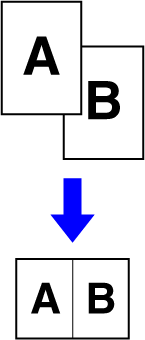
This function copies multiple original pages onto a single sheet of paper in a uniform layout.
Select 2-Up to copy two original pages onto one sheet, 4-Up to copy four original pages onto one sheet, or 8-Up to copy eight original pages onto one sheet.
This function is convenient when you wish to present multiple pages in a compact format, or show a view of all pages in a document.

2-Up copying 4-Up copying

Place the original.

Place the original in the document feeder tray of the automatic document feeder, or on the document glass.
AUTOMATIC DOCUMENT FEEDER
DOCUMENT GLASS

Tap the [Others] key, and tap the [N-Up] key.

Tap the key for the number of copies of the original you want to collect, and the key with the layout displayed.

After the settings are completed, tap [OK] key.
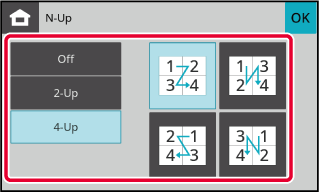
If the zoom ratio is less than 25% depending on the layout, the image will be deleted to change to the minimum zoom ratio of 25%. If the image is automatically corrected, a message will be displayed.
  • To cancel the N-Up setting:
  • Tap the [Off] key.
  • To cancel all settings:
  • Tap the [CA] key.

Tap the [Start] key to start copying.

COPYING BOTH SIDES OF A CARD AS A SINGLE PAGE (CARD SHOT)

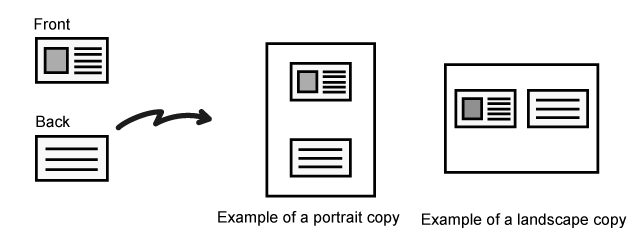
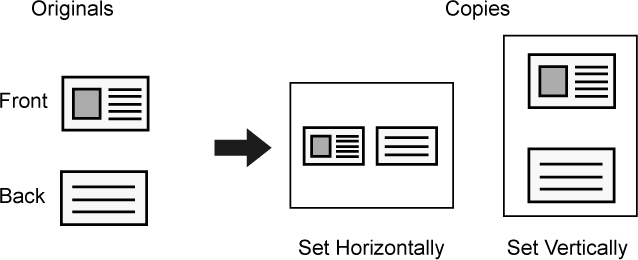
This function copies the front and reverse sides of a card on one sheet, not on separate sheets.
This function is convenient for making copies for identification purposes and helps save paper.
Tap the [Others] key, and tap the [Card Shot] key.

Tap the [On] key, and specify the original size as required.

After the settings are completed, tap [OK] key.
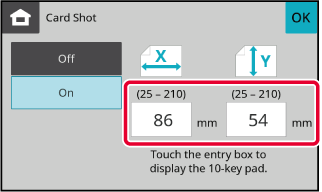
  • Tap the areas displaying width and height sizes respectively, and enter the sizes using the numeric keys.
  • If the image is missing, enter a slightly larger size.
To cancel the Card Shot settings:
Tap the [Off] key.

Place a card face down on the document glass, and tap the [Start] key.

DOCUMENT GLASS
If the image is missing, shift the original inward and set it.

Place a card face up on the document glass, and tap the [Start] key to scan the reverse side.

  • Copy settings cannot be changed when scanning additional pages.
  • To cancel all settings:
  • Tap the [CA] key.

Tap the [Read-End] key to start copying.

COPYING BOTH SIDES OF A ID CARD AS A SINGLE PAGE (ID CARD COPY)

This function copies the front and reverse sides of a ID card on one sheet, not on separate sheets.
This function is convenient for making copies for identification purposes and helps save paper.
Tap the [ID Card Copy] key.

A checkmark appears on the key.
To cancel the ID Card Copy settings:
Tap the [ID Card Copy] key to clear the checkmark.

Place a ID card face down on the document glass, and tap the [Start] key.

DOCUMENT GLASS
  • The scan area and number of copies cannot be changed for ID card copying.
    • When Image Skew Adjustment is disabled:
    • The scan range is 86 mm (3-3/8") in the X direction x 54 mm (2-1/8") in the Y direction.
    • When Image Skew Adjustment is enabled:
    • The scan range is 150 mm (5-29/32") in the X direction x 100 mm (3-15/16") in the Y direction.
  • If skew adjustment is enabled in system settings, a message will appear when the original is not detected correctly. Tap the [Cancel] key to stop the ID Card Copy, or tap the [Continue] key to proceed. If you proceed, the entire reading area will be printed to execute the ID Card Copy.
  • This function allows adjustment of the tilt angle from -15° to +15°.
  • Depending on the ID card, it may not be correctly adjusted.

Place a ID card face up on the document glass, and tap the [Start] key to scan the reverse side and start copying.

To cancel all settings:
Tap the [CA] key.
To set the image skew adjustment:
In the operation panel, select [System Settings] → [Copy Settings] → [ID Card Copy Setting] → [Original Image Type/Exposure Settings] → [Image Skew Adjustment].

Version 01a / bp22m31_usr_01a_en

↑Top of page