SHARP

COPYING

This section explains the basic procedure for copying. Select settings in the order shown below to ensure that the copy operation takes place smoothly.
For detailed procedures for selecting the settings, see the explanation of each setting in this chapter.

Place the original.

Place the original in the document feeder tray of the automatic document feeder, or on the document glass.
AUTOMATIC DOCUMENT FEEDER
DOCUMENT GLASS

Select functions.

Specify the original scan size, exposure, resolution, etc.
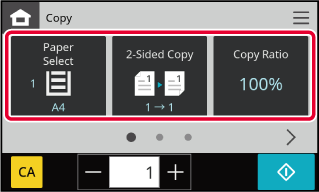
SELECTING THE PAPER TRAY FOR COPYING
AUTOMATIC 2-SIDED COPYING
AUTO RATIO SELECT
SELECTING THE SIZE OF THE ORIGINAL
AUTOMATIC ADJUSTMENT OF EXPOSURE AND ORIGINAL TYPE
SORT/GROUP SETTING
PROGRAMS
COPYING BOTH SIDES OF A ID CARD AS A SINGLE PAGE (ID CARD COPY)

Tap the [Start] key to start copying.

  • To cancel all settings, tap the [CA] key.
  • When the [CA] key is tapped, all settings selected to that point are cleared and you will return to the base screen.
  • To cancel copying, tap the [Cancel Copy] key.
  • To make two or more sets of copies:
  • Tap the copies display key to specify the number of copies.
  • When the original size is not specified on the document glass
  • The original size set in [Original Size Settings] in system settings will be used.
    When this setting is set to [Not Specified], if you tap the [Start] key without specifying a original size when making a copy, the original will be scanned using the paper size of the selected paper tray.

Version 01a / bp22m31_usr_01a_en

↑Top of page
