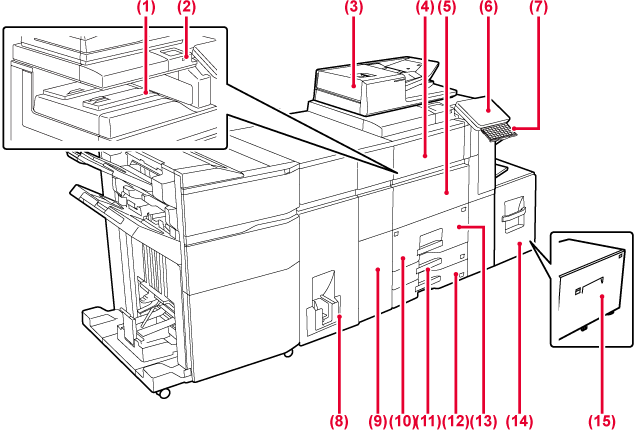
Received faxes and printed papers are delivered to this tray.
This is used to connect
a USB device such as a USB memory device to the machine.
Supports USB 2.0 (Hi-Speed).
It automatically feeds and scans multiple originals. 2-sided originals can be automatically scanned. Both sides of 2-sided originals can be automatically scanned at one time.
Open this cover to
replace the toner cartridge or to remove misfed paper in the paper
pass unit.
Open to switch the
main power switch to "On" or "Off".
This panel hosts
the [Power] button, Information indicator and touch panel.
Use the touch panel to operate each of these functions.
An NFC touch point area mark also appears.
Use this as a substitute
for the soft keyboard displayed on the touch panel. When not being
used, it can be stored under the operation panel.
This folds and outputs
paper.
Corrects paper curl.
Store paper in this
tray.
Store paper in this
tray.
Store paper in this
tray.
Store paper in this
tray.
Store paper in this
tray. Up to 3500 sheets can be stored.
Store paper in this
tray. Up to 3000 sheets can be stored.
* Peripheral device.
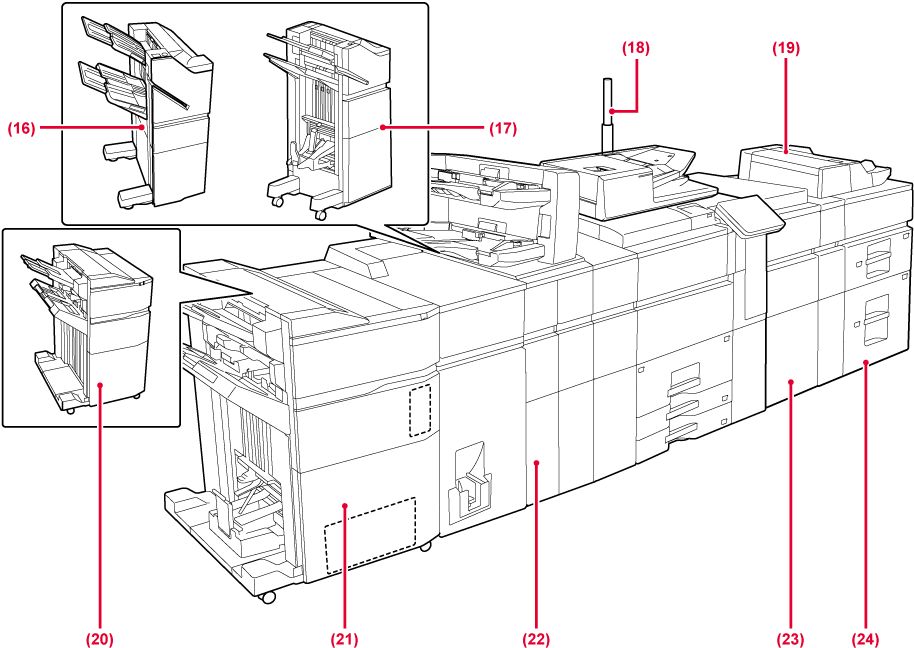
This staples paper.
A punch module can also be installed to punch holes in output paper.
You can also perform stapling manually.
This staples and
folds paper.
A punch module can also be installed to punch holes
in output paper.
You can also perform stapling manually.
The status of the
machine is indicated.
When loading paper
larger than A4R or 8-1/2" × 11"R,
pull out the extension guide..
This staples paper.
A punch module can also be installed to punch holes in output paper.
This staples and
folds paper. A punch module can also be installed to punch holes
in output paper.
Covers and insertion
sheets to be inserted into printed sheets can be loaded.
Using the manual finishing function, you can directly
feed paper into the finisher or saddle stitch finisher to staple, punch
or fold the paper.
Relay between the
machine and Large capacity trays.
Store paper in this
tray. Up to 2500 sheets can be stored in each tray.
* Peripheral device.
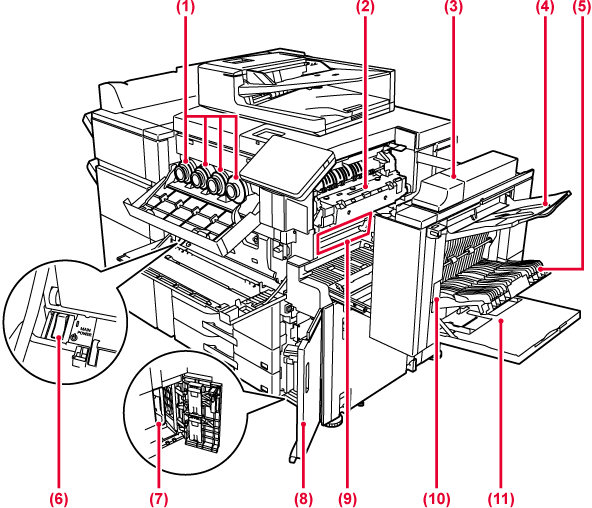
This cartridge contains
toner.
When the toner in a cartridge runs out, replace
with new one.
Heat is applied here
to fuse the transferred image onto the paper.
Warning
The fusing unit is hot.Open this cover to
remove a paper misfeed.
As required, paper
can be output into the right tray.
Outputting received fax printouts into the right tray allows you
to separate them from other printed paper.
This unit is used
for reversing paper when 2-sided printing is performed. Open this
cover to remove a paper misfeed.
Use this switch to
turn on the power for the machine.
When using the fax or Internet fax functions, always
keep this switch in the “
 ” position.
This container collects
excess toner that remains after printing.
REPLACING THE TONER COLLECTION CONTAINER
Open this cover when
replacing the toner collection container.
This belt takes the
image formed with toner off the
photoconductive unit and transfers the image onto paper.
This container collects excess
toner that remains after printing.
REPLACING THE TONER COLLECTION CONTAINER
Caution
Do not touch or damage the transfer belt.To remove a paper
misfeed, pull and hold this lever up to open the right side cover.
Use this tray to
feed paper manually.
When loading paper larger than A4R or 8-1/2" × 11"R,
pull out the extension guide.
* Peripheral device.
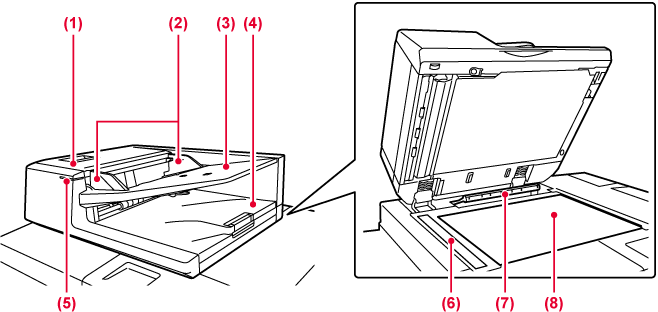
Open this cover to
remove an original misfeed.
This cover is also opened to clean the paper feed
roller.
These guides help
ensure that the original is scanned correctly.
Adjust the guides to the width of the original.
Place the original.
Place the original with the print side facing up.
The original is discharged
to this tray after scanning.
This indicator lights when the document is correctly loaded on the document feeder tray.
Originals placed
in the automatic document feeder are scanned here.
This unit detects
the size of an original placed on the document glass.
If you want to scan books or other thick originals that cannot be fed through the automatic document feeder, place them on this glass.
.png)
This is used to connect
a USB device such as a USB memory device to the machine.
Supports USB 2.0 (Hi-Speed) and USB3.0 (SuperSpeed).
The machine does
not use this connector.
Connect the LAN cable
to this connector when the machine is used on a network.
Use a shielded LAN cable.
When the fax function
of the machine is used, an external phone can be connected to this
jack.
When the fax function
of the machine is used, the telephone line is connected to this
jack.
Be sure to connect
the ground wire on the power cord of the machine.
* Peripheral device
This section describes the names and functions
of the respective parts of the operation panel.
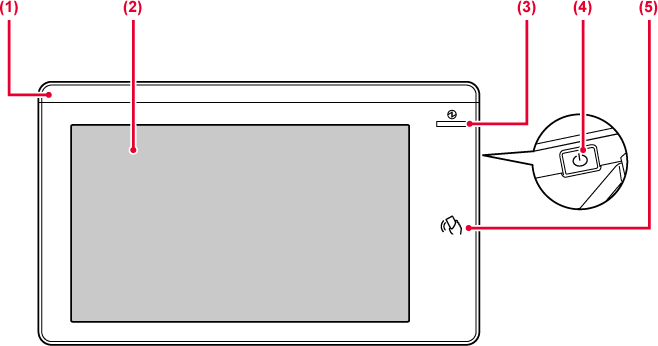
This indicator illuminates
when the power to the machine is turned on, and when a user logs
in to the machine.
Messages and keys
appear on the touch panel display.
Operate the machine by directly tapping the displayed keys.
This indicator lights
up when the machine's main power switch is in the “
” position.
Blinks blue during the time that the [Power] button
does not operate immediately after the main power switch is switched
on.
This indicator will also blink blue when receiving
printer data.
This indicator blinks yellow during Auto Power Shut-Off mode.
Use this button to
turn the machine on and off and to enter the power saving mode.
NFC can be used when
connecting to Synappx Go. For more information, see the Synappx
Go manual.

Caution
When turning the machine power ON/OFF; at
user authentication when the user has logged in using IC card or
NFC; when connecting USB memory to the machine; when starting a
job on the machine control panel; or during image adjustment or
when adding toner; a fax is being received or an error has occurred
in the machine, the LED lights blue, white and orange in response
to the request/operation from the user to communicate to the user
the machine status.
Lighting patterns differ depending on status.
| Lighting color | Lighting patterns | Status |
|---|---|---|
|
Blue |
Lighting pattern 1 |
When the power is turned on by user operation, when the power is turned off by user operation, when the power is restored from sleep mode*1, when the power is shifted to sleep mode*1, and when a job (copy, scan, fax) is started by the operation panel. |
|
Lighting pattern 2 |
During user authentication, at user login using an IC card or NFC Insertion of USB memory into the machine |
|
|
Lighting pattern 3 |
When users are made to wait, during image quality adjustment or adding toner |
|
|
White |
Blinks |
A fax is being received. When receiving fax data or when there is fax output paper, this blinks until the output is removed. |
|
Orange |
Lights*2 |
Errors that do not stop machine operation, such as replacement timing of the toner collection container. |
|
Blinks*2 |
Errors that stop machine operation, such as misfeeds and out of toner. |
*1 The information lamp lights up when the power is turned on or off directly by the user, or when the machine is restored from sleep mode. The information lamp does not light up when the printer is not operated directly by the user, such as when receiving a print job or when the scheduled auto power shut-off is turned on or off.
*2 If the lighting state and the blinking state overlap, the blinking state takes priority.
Lighting
pattern 1
After lighting sporadically, all lights come on together, and
then turn off.



Version 02b / bp80c80_usr_02b_us

