UNIVERSAL DESIGN IN THE MACHINE
The structure of the machine and the software are designed
to allow all people to use the machine with ease.
UNIVERSAL DESIGN RELATED TO OPERATION
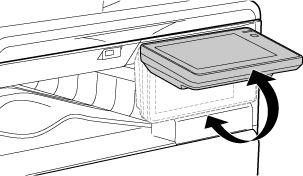
Adjustment of operation panel
angle
The angle of the entire operation panel can be adjusted
to enable use even when seated.
Changing of key response time
The response time of the keys can be changed as needed.
From the operation panel, select [System Settings] → [Common
Settings] → [Operation Settings].
- Time
for Accepting Key Entry
This
setting determines how long a key in the touch panel must be tapped
until the key input is registered. The time can be set from 0 to
2 seconds in increments of 0.5 seconds.
By
lengthening the time setting, key input can be prevented when a
key is tapped accidentally. Keep in mind, however, that when a longer
setting is selected more care is required when tapping keys to ensure
that key input is registered.
- Disable
Auto Key Repeat
This is used
to disable key repeat.
Key repeat causes a setting
to change continuously not only each time the key is tapped but
while a key is tapped.
- Long-touch
Detection Time
Select
a time when a long key touch is detected.
UNIVERSAL DESIGN RELATED TO HEARING
Audible alert sounds when changing settings
When moving through copy ratio or exposure settings,
the user is alerted by an audible sound at the default setting (copy
ratio 100%, exposure 3).
From the operation panel, select [System Settings] → [Sound Settings]
→ [Beep Sound Settings (Common)] → [Keys Touch Sound/Powering Off Sound] and [Reference
Tone].
- Keys
Touch Sound
Control the key touch sound level, or turns
the sound off. You can also have two peeps sound at initial values
when setting the ratio in copy mode or when adjusting the exposure
in any mode.
| Screen in which setting is effective |
Initial value |
|
Ratio setting screen in base
screen of copy mode
|
Ratio 100%
|
|
Exposure setting screen in base
screen of copy mode
|
Exposure level: 3 (medium)
|
|
Exposure adjustment screen in
base screen network scanner modes
|
UNIVERSAL DESIGN FEATURES
The machine has design features and settings
that are compatible with universal design.
Easy-to-use user interface
- Customizing
the home screen - changing the display order
You can change the order of the items in the
home screen so that the items you use most frequently appear first.
To change the order of the items in the home
screen, change in [System Settings] →[Home Screen Settings] →[Condition Settings]
→[Home Button]
in the Web page.
- Customizing
the home screen - intuitive and easy-to-use design
A flat icon design is used to make the screen
intuitive and easy to view. The toner level is always shown, eliminating the
need to perform an action to check the toner level.
- Multi-language
display
The language used in the touch panel can be
changed to another language such as English or French.
Select the desired language in "Language Settings".
Intuitive operation
- Easy
operation by storing programs
The program function lets you store groups of
settings for copying, and other functions. By storing groups of
settings that you frequently use, you can easily select those settings.
PROGRAMS
STORING SCAN OPERATIONS (PROGRAM)
- Remote
operation
You can display
the machine's touch panel on a computer on the same network to operate
the machine from the computer. You can show how to use the machine
on a computer, and people who have difficulty using the touch panel can
operate the machine from a computer.
REMOTE OPERATION OF THE MACHINE
Easier operation at the machine
- Darkened
output tray colour
Output tray colours are darkened to make it
easy to distinguish the tray to which a job has been output.
Simple toner replacement
- Toner
box can be opened with one hand
The box that contains a toner cartridge can
be easily opened with one hand.
- Prevention
of toner cartridge mis-installation
To prevent installation of a toner cartridge
in the wrong location, each colour of toner cartridge can only be
installed in its own location.
REPLACEMENT OF TONER CARTRIDGE